


Higher Logic Vanilla Jira Integration: Connect Community Feedback to Jira Workflows
Turn community posts, ideas, and bug reports into Jira issues with full context.

Higher Logic Vanilla’s Jira integration lets staff escalate community posts, ideas, and bug reports directly into Jira issues. Each issue includes the original discussion content, author details, and a link back to the community, helping product, development, and support teams act on feedback with full context.
Explore Higher Logic Vanilla’s integrations to see everything Vanilla works with.
Communities generate a steady flow of product ideas, requests, questions, and bug reports that teams need to track and address. But acting on that feedback often requires extra steps. Teams have to copy content from the community, re-enter it in Jira, and manually track progress in both places. It’s time-consuming, important information can sit idle, and it increases the chance of losing important context along the way.
With Higher Logic Vanilla’s Jira integration, you can remove that friction. It connects your community and development workflows so feedback turns into action faster and with less manual effort.
What the Integration Does
The Jira integration connects Higher Logic Vanilla directly to your Jira instance (both cloud and enterprise versions) so your teams can take community input and turn it into JIRA issues.
Staff users in Vanilla can escalate any community post, idea, or bug report into Jira with a single click. They can choose the Jira project and issue type—such as a task or epic—and submit it directly without leaving the community.
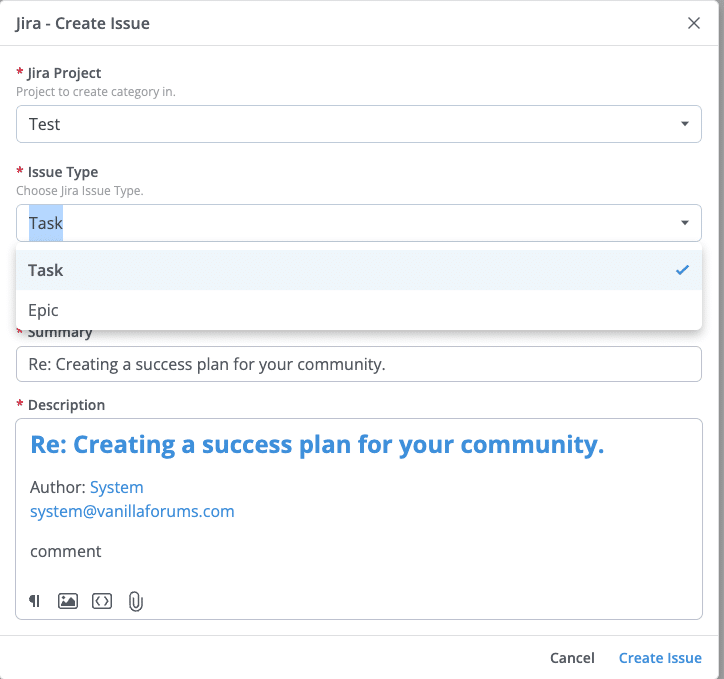
A staff member escalates a community post into Jira, selecting the project and issue type before creating the ticket.
When a post is escalated, the Jira issue automatically includes key information from the community: the title, content (including text formatting and any embedded images, files or videos), author details, and a link back to the original discussion. This ensures that developers, product managers, and other Jira users have full context about where the request came from and what prompted it.
In Higher Logic Vanilla, the original discussion shows a Jira status indicator that updates when the page is refreshed, so moderators and staff get a quick view of progress without needing to check Jira directly.
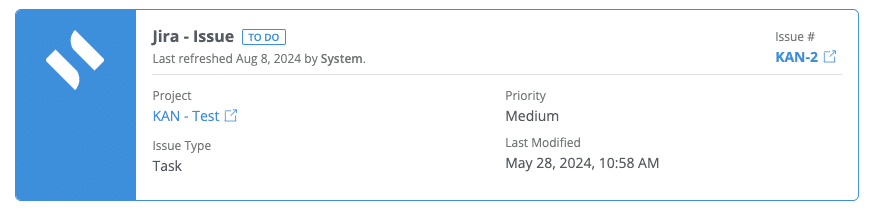
Example of the Jira issue card displayed on a community post after it has been escalated.
It uses the same permissions and access controls your organization already relies on in both Jira and Higher Logic Vanilla. Only authorized users with the appropriate permissions can create or view these Jira issues, and only projects that the connected Jira account has access to appear as destinations.
How Teams Use It
The Jira integration creates a single path from community discussions to the systems where teams manage their work. It helps different parts of the organization move faster and stay aligned by keeping feedback, tasks, and issue tracking connected.
- For product teams: When an idea gains traction in the community, product managers can escalate it directly into Jira for review and prioritization. The original context, member comments, and voting data carry over, so teams understand why the idea matters and who it impacts. Combined with Higher Logic Vanilla’s automation rules, ideas can automatically reach a review threshold, such as a set number of votes, before being flagged for Jira escalation.
- For support teams: If a customer reports a bug or recurring issue in the community, staff can turn that post into a Jira ticket with all relevant details already included. This gives developers or IT teams the information they need right away, without anyone rewriting or duplicating the report.
- For internal or staff communities: Teams that use Vanilla internally can use the same process to escalate IT or process issues. If a problem can’t be solved in the discussion, it can be converted to a Jira issue and assigned for follow-up.
For setup instructions and deeper technical details, visit our Jira integration documentation.
Explore Higher Logic Vanilla’s integrations to see everything Vanilla works with.